Introducing 3Shape TRIOS Connection With SmileFy
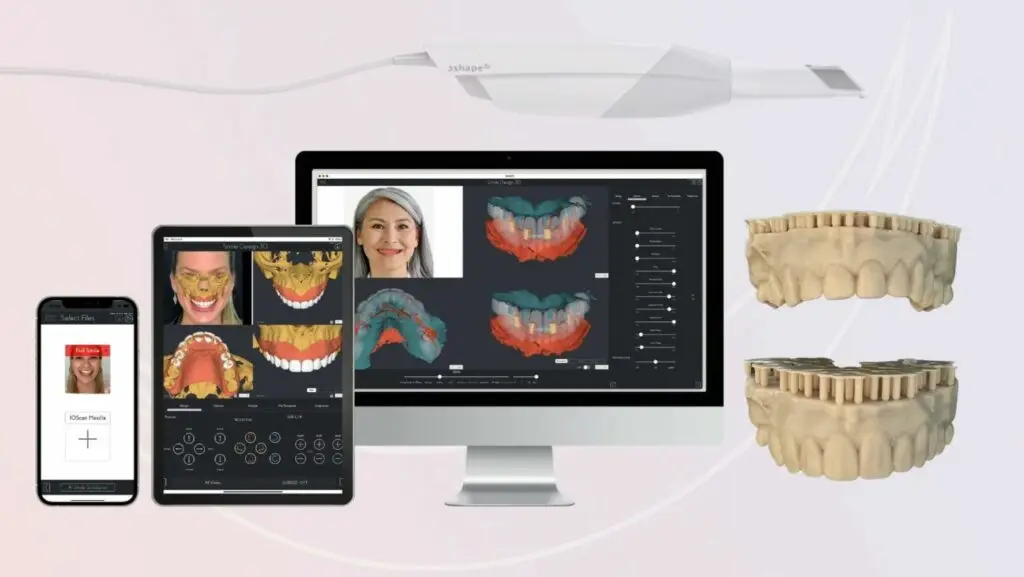
A New In-App Connection Has Landed!
Exciting things kick us off as we start the new year. Up first, we're thrilled to announce a fresh new partnership with dental global brand 3Shape and the Intra-Oral Scanner, TRIOS.
It comes at no surprise as we understand the impact that 3Shape has made in the digital dentistry world with its innovative solutions that make a real difference in the lives of both patients and dental professionals around the world.
What Does This Mean for SmileFy Customers With a TRIOS Scanner?
If your practice has a TRIOS intraoral scanner, you can now access your patient scans directly inside the SmileFy app by connecting your 3Shape account. Instead of exporting a scan from your TRIOS software, saving it to a device, and manually uploading it into a SmileFy project, the connection allows you to browse and select scans from your 3Shape account without leaving the app. This makes starting a Smile Design project that includes an intraoral scan significantly faster and reduces the manual file-handling steps between your scanner and your design workflow.
Requirements and Compatibility
Before connecting 3Shape TRIOS to SmileFy, confirm the following:
Scanner — 3Shape TRIOS intraoral scanner (any model that saves scans to a 3Shape account — TRIOS 3, TRIOS 4, TRIOS 5, and TRIOS Move+ are all compatible via the 3Shape cloud account).
3Shape account — An active 3Shape account (3Shape Communicate or 3Shape Unite) that contains the patient scans you want to import. The account must have the scans stored and accessible via 3Shape online services.
SmileFy app — The SmileFy app installed on a compatible iPhone (iPhone 7 Plus or newer). Confirm your app is updated to the latest version via the App Store.
Internet connection — An active internet connection is required both on the SmileFy device and for the 3Shape account to be accessible. The connection retrieves scan data from the 3Shape cloud services.
Login credentials — Your 3Shape account username and password. You will enter these once inside the SmileFy app to authenticate.
How to Connect 3Shape TRIOS to SmileFy
Follow these steps in order. The steps below are drawn directly from the SmileFy feature description and reflect the connection flow within the app.
Workflow Summary
Launch the SmileFy App
Open the SmileFy app on your iPhone. Ensure you are logged into your SmileFy account and that the app is updated to the latest version.
Open a New Project
Tap to create a new project — Patient Documentation or Smile Design — depending on where you want the scan to appear.
Connect Your 3Shape Account
Inside the project, locate the 3Shape / TRIOS connection option. Tap it to initiate authentication. Enter your 3Shape credentials (not your SmileFy login).
Select the Patient and Scan
Browse the patients and scans in your connected 3Shape account. Select the specific scan(s) you want to import into the current SmileFy project.
Start Your Smile Design
With the scan now in your project, add the patient's facial photograph, align the 3D Smile Frame, and begin the Smile Design.
Your Smile Design project includes the TRIOS intraoral scan alongside the patient photograph — the combined workflow from scan to design start is complete without any manual file export or transfer.
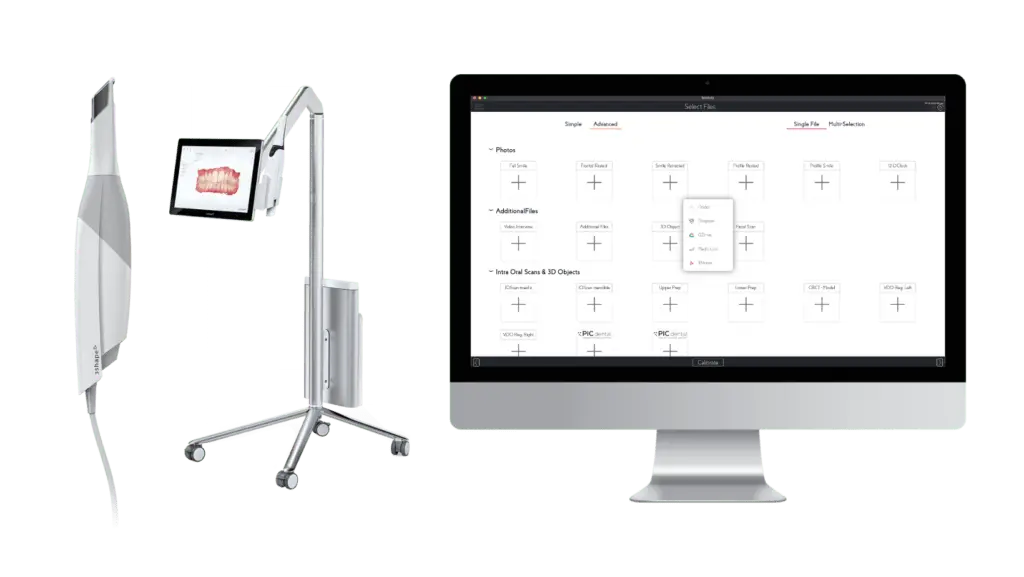
What Gets Imported — Scope and Behaviour
Source — Scan files stored in and accessible via your 3Shape account (3Shape Communicate or 3Shape Unite). Only scans that are saved in your account are available for import.
What is imported — The patient's intraoral scan file(s) selected during the import step. These are added directly to your SmileFy project as IO scan data.
Where files live in SmileFy — The imported scan appears inside the specific SmileFy project in which you initiated the import. It is not added globally across all projects.
Re-imports and duplicates — If you import the same scan again into a new project, a new copy will be added to that project. The connection does not automatically deduplicate scans across projects.
Key Benefits
Fewer manual steps — eliminates the need to export a scan from TRIOS, save it to a file, transfer it to the device running SmileFy, and manually upload it to a project — all replaced by a single in-app selection.
Faster project start — once the 3Shape account is connected, adding a patient's scan to a new SmileFy project takes seconds rather than minutes of file handling.
Reduced file management errors — direct retrieval from the 3Shape account reduces the risk of importing the wrong scan file, an outdated version, or a file from the wrong patient.
Immediate design capability — the imported scan is available for SmileFy's 3D planning features — combining the IO scan with a facial photograph to start a facially-guided Smile Design — without leaving the app.
Real-World Workflow Example
A patient presents for a cosmetic consultation after their TRIOS upper arch scan was taken at a previous appointment.
Scan already completed — the upper arch TRIOS scan is stored in your 3Shape account from the previous appointment.
Open SmileFy — create a new Smile Design project.
Connect 3Shape account — browse to the patient → select the scan → import. The scan is now in the project.
Capture or upload — take the facial photograph at the same appointment or import from the patient record.
Align and design — set the 3D Smile Frame and begin the Smile Design. The consultation proceeds with the IO scan and the facial photograph already combined.
The manual file-export and import steps that would otherwise occur are entirely eliminated by the TRIOS connection.
Troubleshooting Common Issues
Wrong credentials / authentication fails — Confirm you are entering your 3Shape account credentials, not your SmileFy login. Verify your credentials work directly in 3Shape Communicate or 3Shape Unite first. Complete any 2FA steps when prompted.
No patients or scans found — Confirm the scans are saved and visible in your 3Shape account. If the account is correct but scans are missing, they may not yet have synced to the 3Shape cloud.
Missing bite or arch after import — Check whether the missing scan type is present in your 3Shape account. Contact support@smilefy.com to confirm which scan types are supported for your setup.
Connection times out — Check the internet connection on your iPhone. If on a clinic network, confirm it does not block connections to 3Shape services.
App version out of date — Go to the App Store, search SmileFy, and update to the latest version.
Security and Privacy
Authentication — You authenticate using your existing 3Shape credentials. SmileFy does not store your 3Shape password.
Data in transit — Scan data travels over an encrypted connection (HTTPS). Do not use the connection over unsecured public Wi-Fi.
PHI handling — Patient scan data imported into SmileFy is subject to SmileFy's privacy and data handling policies. For HIPAA or GDPR compliance, review SmileFy's Privacy Policy and request a DPA if required.
Frequently Asked Questions
Q: Does SmileFy integrate with 3Shape TRIOS?
Yes. SmileFy has a direct connection with 3Shape TRIOS that allows you to access your patient's intraoral scans stored in your 3Shape account from within the SmileFy app, without manually exporting or transferring scan files.
Q: Which TRIOS versions are supported?
The connection works with TRIOS scanners whose scans are accessible via a 3Shape account (3Shape Communicate or 3Shape Unite). TRIOS 3, TRIOS 4, TRIOS 5, and TRIOS Move+ all store scans to the 3Shape cloud account.
Q: Can I import scans that were already taken before I set up the connection?
Yes, as long as those scans are saved and accessible in your 3Shape account. The connection retrieves scans at the time of import — it is not limited to scans taken after setup.
Q: Are colour scans and bite registrations included?
This depends on your TRIOS model and 3Shape account configuration. Contact support@smilefy.com for a definitive answer.
Q: Are there any additional costs?
The 3Shape TRIOS connection is available within SmileFy. Plan availability may vary — contact support@smilefy.com or visit smilefy.com/pricing to confirm.
Q: How do I disconnect my 3Shape account?
The disconnection process is managed within the SmileFy app settings. Disconnecting removes the link but does not delete scan files already imported into SmileFy projects.
Q: Does it work offline?
No. The connection retrieves scans from the 3Shape cloud, which requires an active internet connection. Scans already imported are stored locally within the project.
Q: Does SmileFy integrate with other scanners?
SmileFy also has a connection with Medit intraoral scanners. For other brands (iTero, Planmeca, etc.), scans can be imported manually by exporting as STL or OBJ and uploading to the SmileFy project.
How this post will look when shared
smilefy.com
Introducing 3Shape TRIOS Connection With SmileFy
SmileFy now connects directly to your 3Shape account so you can import a patient's TRIOS intraoral scan into…